Editing UGC on mobile: cuts, subtitles, sound and pacing, for Brazilian creators.
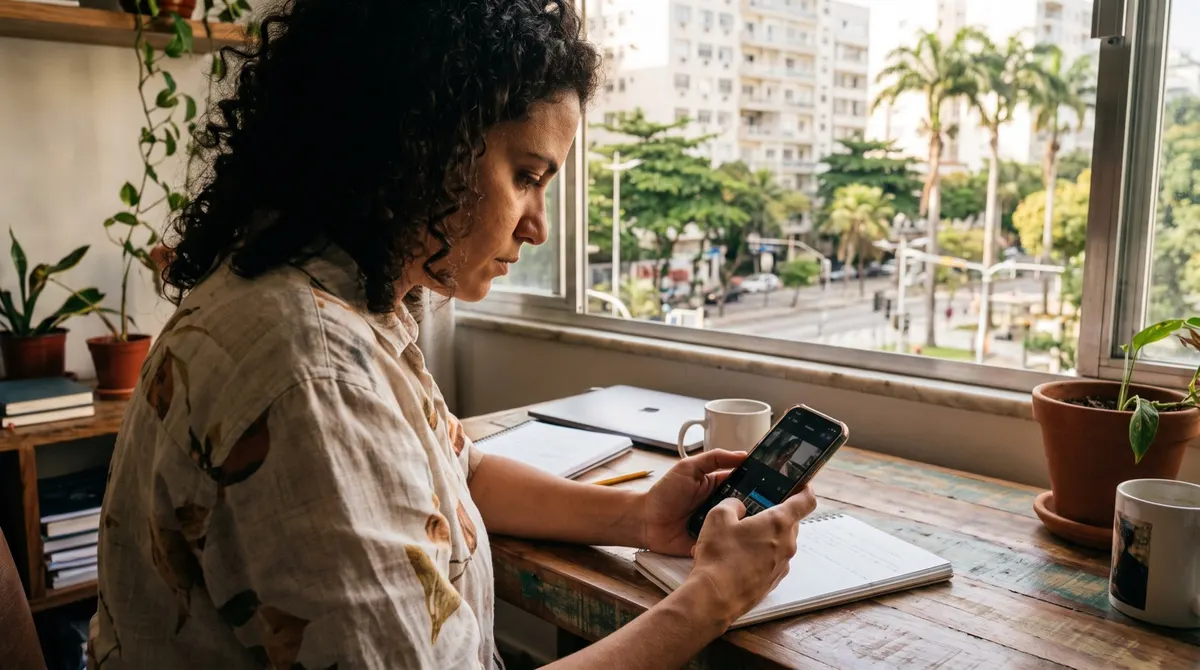
Why editing on the phone works for Brazilian creators
Seven practical reasons.
Shooting and editing happen on the same device, with no transfer and no lost time.
Mobile editing apps are widely used here, and therefore well mastered.
Editing can happen on public transport, which changes real productivity.
Vertical formats are native, with no conversion.
The result is checked immediately on the screen where the video will be seen.
The equipment investment is zero, which counts at the start.
And speed of delivery becomes a commercial argument, often more decisive than editing quality.
A fast, repeatable workflow
Cut the gaps
Go through once to remove long silences and false starts, without touching anything else. That step alone often removes twenty per cent of the running time and improves retention.
Cut to the rhythm
One cut per idea, never one cut per second. The rhythm comes from the content, not from the effect: three clear shots are worth more than ten fast ones that prevent understanding.
Add the subtitles
Last, once the edit is locked. Adding them too early forces you to redo everything at the slightest change, which is the main source of wasted time on a phone.
Subtitles that carry the message
Seven settings that make the difference.
Two lines maximum, never three.
A thick typeface and a light background, to stay legible in full sun.
Placement at the top, never in the zone covered by the app interface.
A size large enough to stay legible when the video is forwarded in a private message.
Systematic manual proofreading, since automatic recognition gets brand names wrong.
Respect for the Portuguese actually spoken in the video, without correcting it.
And frame-accurate synchronisation on the key sentence, even if the rest is approximate.
Trending music and text hooks
Six rules to know before adding sound.
Music built into the app does not always cover advertising use, which is checked before delivery.
A brand running advertising needs a version with no music.
Music must never sit over the key sentence.
A text hook works better than music for holding the first three seconds.
The sound of the product, handled or poured, is often worth more than trending music.
And a sound trend ages in a few weeks, which dates the video long before its subject.
Exporting without losing quality
Six settings to check once and for all.
Exporting in the highest resolution available, never in an economy setting.
Choosing the frame rate of the shoot, with no conversion.
Avoiding successive exports, dealt with above.
Checking that the app's watermark does not appear, which makes the delivery unusable.
Checking the file size against what the brand accepts.
And watching the whole export before delivering, since the last second is often cut off.
Exporting for each platform
Six differences to respect.
Vertical format remains the base, but safe zones differ between apps.
The maximum accepted duration varies, which sometimes imposes a short version.
Some platforms recompress heavily, which penalises dark backgrounds.
The file name has to follow the brand's convention, not yours.
The version without burnt-in subtitles is often requested for international uses.
And a square or horizontal version may be required for advertising, to be planned from the shoot.
What you do not do on a phone
Five limits to know, so as to know when to change tool.
Editing with several complex tracks, which quickly becomes unmanageable.
Fine colour correction, particularly on skin.
Advanced sound work, beyond levelling the volume.
Long projects, where the app slows down and loses elements.
And archiving, since a phone is not a reliable storage medium.
The five minutes that save an hour
Seven things to do before opening the editing app.
Deleting failed takes directly in the gallery, before importing.
Renaming the three selected takes, which avoids confusing them later.
Listening to the sound of each take, since ten seconds are enough to discard an unusable one.
Putting the phone in flight mode, since a notification during export interrupts the render.
Checking available space, the main cause of exports that fail at ninety per cent.
Plugging in the charger, since video editing drains a battery faster than anything else.
And writing the video's key sentence in one line, so as not to lose it among the cuts.
What works perfectly well on a phone
| The operation | On a phone | Its limit |
|---|---|---|
| Cutting and assembling | Fast and sufficient | None |
| Adding subtitles | Automatic, needs proofing | Proper nouns |
| Colour grading | Approximate | An uncalibrated screen |
What is sorted before you start editing
Filing the clips. Five minutes naming the takes saves twenty minutes of hunting, and it is the one place where you systematically lose time on a small screen.
What is checked before exporting
The sound on headphones, subtitle legibility at arm's length, and the opening shot with no cut. Three quick checks that prevent almost every return.
The working folder that prevents losses
Six habits that save hours.
Creating one folder per assignment, with rushes separate from the edit.
Backing up the rushes somewhere other than the phone, on the day of the shoot.
Naming files with the date and the brand's name.
Keeping the edit project until final approval, never deleting it after export.
Keeping a version without subtitles and a version without music of every delivery.
And clearing the phone's memory every week, since available space is the main cause of export failure.
One last marker: in Brazil, editing on a phone is not a fallback, it is a speed advantage. What distinguishes a paid creator is not the software, it is the discipline: one project, one export, proofread subtitles and a backup made the same day.